Best Android News Widgets: Setup and Comparison Guide for 2026
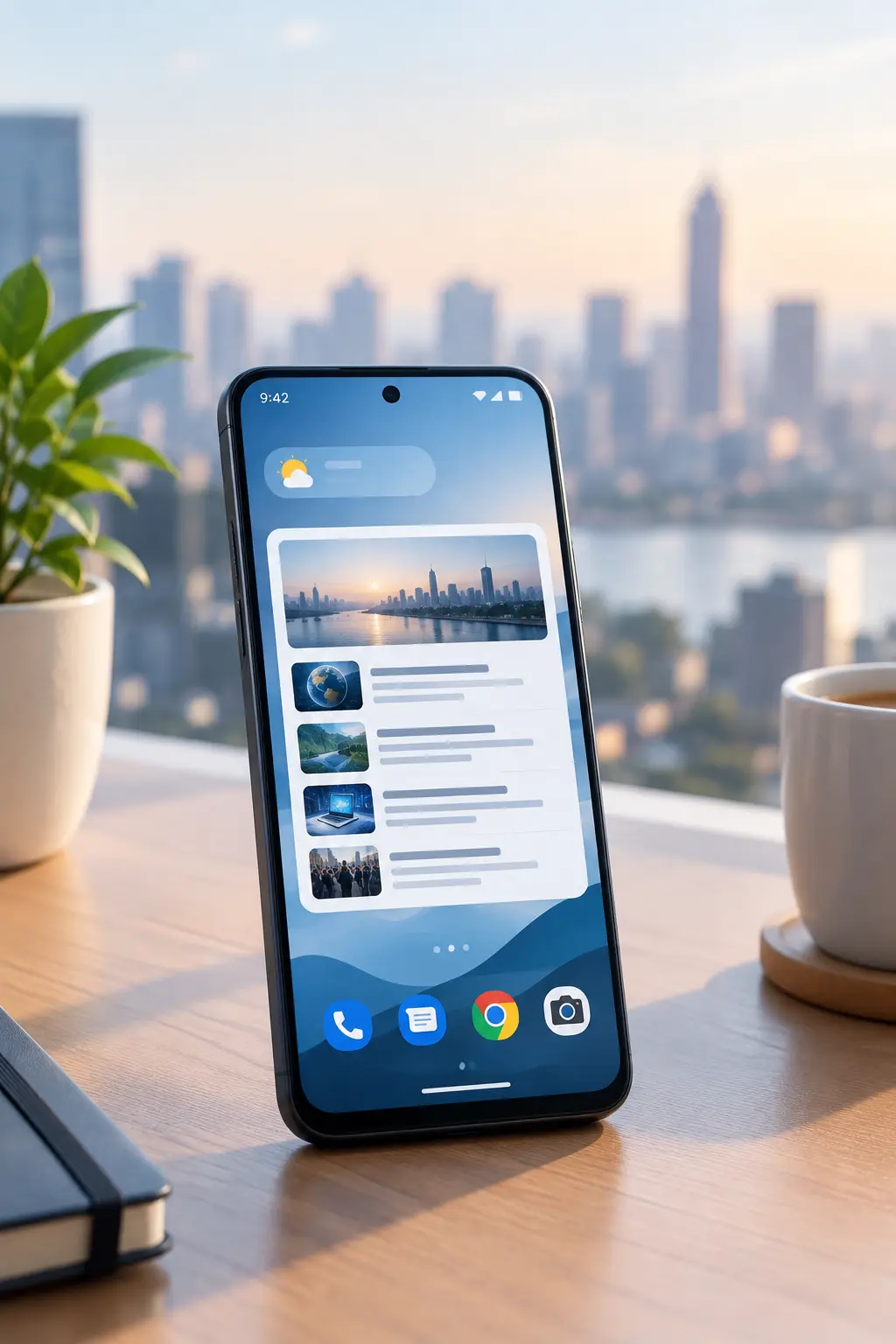
Quick answer: The best news widget android setup depends less on a single "winner" app and more on matching the widget type to how you actually check news—a compact ticker for a quick glance, a headline list for a scan, or a full-briefing widget for a more complete read. Most Android news apps offer at least one of these, and adding one takes under a minute once you know where to look.
Android's home screen has supported resizable widgets for years, but news widgets specifically have improved a lot recently—faster refresh, better battery behavior, and cleaner designs that don't turn your home screen into another feed to scroll. The tricky part isn't finding a widget; it's picking the right size and type so it actually gets used instead of becoming home-screen clutter you stop noticing within a week.
This guide covers what separates a genuinely useful Android news widget from a gimmick, how the common widget types compare, and the exact steps to add and configure one on a current Android device. If you're weighing widgets across both platforms, our broader comparison of news widgets and home screen tools covers iOS alongside Android.
Table of Contents
- What Makes a Good Android News Widget?
- Types of Android News Widgets Compared
- Key Features to Compare Before You Choose
- How to Add a News Widget to Your Android Home Screen
- How to Customize and Optimize Your Widget
- Common Widget Problems and How to Fix Them
What Makes a Good Android News Widget?
Not every widget that shows headlines is worth keeping on your home screen. A few traits separate the ones people actually use from the ones that get deleted within a week:
- Fast, predictable refresh. A widget that updates on a reasonable schedule (not constantly, not stale for hours) is more useful than one that refreshes so often it drains battery or so rarely it shows yesterday's news.
- Readable at a glance. Headlines should be legible without zooming or tapping—if you have to open the app to understand the widget, it isn't doing its job.
- Content you can control. The ability to choose a category, region, or source—rather than an uneditable general feed—keeps the widget relevant to what you actually care about.
- Reasonable size on your home screen. A widget that takes over half your screen for a handful of headlines usually gets removed; the best ones fit alongside other apps and shortcuts.
- Minimal battery and data impact. A widget that meaningfully drains your battery defeats the purpose of a glanceable tool.
Types of Android News Widgets Compared
Most Android news widgets fall into one of three general formats, each suited to a different habit:
| Widget type | What it shows | Best for | Trade-off |
|---|---|---|---|
| Compact / ticker | A single rotating headline or breaking-news banner | Users who want the bare minimum, checked in passing | Easy to miss if you don't glance often |
| Standard / headline list | Three to five headlines, updated periodically | Most people—enough context without commitment | Takes more home screen space than a ticker |
| Expanded / briefing preview | A short summary or briefing excerpt, sometimes with multiple categories | People who want a near-complete update without opening the app | Largest footprint; needs a spare home screen area |
GeoBarta's Android widgets follow this same pattern—a compact widget for a breaking-news ticker, a standard widget for top headlines, and an expanded widget that previews a fuller briefing—with content selection (global, national, or local) and update frequency adjustable from the app's settings. Whichever app you use, matching the widget size to how often you actually check it matters more than which specific app provides it.
Key Features to Compare Before You Choose
Widget type is only half the decision. Once you've narrowed down a size, compare candidates on four practical criteria rather than picking whichever app you already have installed:
| Feature | What to check | Why it matters |
|---|---|---|
| Update speed | How often the widget actually refreshes—continuous, hourly, or only when you open the app | Too slow and you're reading stale headlines; too aggressive and it costs battery for little real benefit |
| Source selection | Whether you can pick a category, region, or specific topic, or you're stuck with one general feed | A widget locked to a broad feed is easy to tune out; one you've narrowed to what you care about gets read |
| Customization | Size options, light/dark theming, and whether layout or content density can be adjusted | A widget that doesn't fit your home screen layout or clashes with your theme tends to get removed quickly |
| Battery use | Whether the app lets you set or see the refresh interval, and how it behaves under battery optimization | Widgets that ignore battery settings or refresh constantly in the background are the most common reason people give up on them |
Test a widget against these four before deciding it's not for you—many disappointing first impressions come down to one setting (usually update speed or a battery restriction) rather than the widget concept itself.
How to Add a News Widget to Your Android Home Screen
The exact menu wording varies slightly by Android version and phone manufacturer, but the general steps are consistent:
- Long-press an empty area of your home screen until a menu appears (usually with options like Wallpaper, Widgets, and Settings).
- Tap "Widgets." This opens a scrollable list of every app installed on your device that offers a widget.
- Find your news app in the list and tap it to see its available widget sizes and types.
- Long-press the widget you want, then drag it to an open space on your home screen.
- Resize it if needed by long-pressing the widget once it's placed, then dragging the resize handles that appear at its corners or edges.
- Open the widget's settings (often a small gear icon, or a tap-and-hold menu) to choose category, region, or refresh frequency if the app supports it.
If you don't see a particular app in the widget list, it usually means that app doesn't currently offer an Android widget—not that something went wrong with the setup.
How to Customize and Optimize Your Widget
Once a widget is placed, a few adjustments make it noticeably more useful:
- Set the refresh interval deliberately. A shorter interval means fresher headlines but more battery use; a longer one is gentler on battery but can feel stale. Most people find a middle ground works better than either extreme.
- Choose a specific category or region if the app allows it, rather than leaving it on a general feed—this is usually what separates a widget you actually read from one you tune out.
- Match the widget's theme to your system setting (light, dark, or auto) so it doesn't stand out awkwardly against your wallpaper and other widgets.
- Place it somewhere you naturally look, such as your primary home screen rather than a secondary page you rarely swipe to.
- Remove widgets you've stopped reading. A widget that's become background noise isn't providing value—freeing that space for one you'll actually use is a better trade.
Common Widget Problems and How to Fix Them
A few issues come up often enough to be worth knowing the fix for:
- Widget not updating: Check that battery optimization isn't restricting the app in the background—on most Android phones this is under Settings > Apps > [app name] > Battery, and setting it to "Unrestricted" usually resolves stale widgets.
- Widget missing from the list: Confirm the app is fully installed and has been opened at least once since installation; some apps only register their widget after the first launch.
- Widget resets to default settings: This can happen after a phone restart or an app update—reopen the widget's settings and reselect your preferred category or region.
- Widget looks cut off or oddly sized: Long-press the widget and use the resize handles to adjust it; some launchers snap widgets to a fixed grid that doesn't match the widget's default dimensions.
Frequently Asked Questions
What is the best type of news widget for Android?
It depends on your habit. A compact ticker suits a quick glance, a standard headline-list widget works for most people, and an expanded briefing widget suits anyone who wants a more complete update without opening the app.
How do I add a news widget to my Android home screen?
Long-press an empty area of your home screen, tap "Widgets," find your news app in the list, then drag the widget you want onto your home screen and resize it as needed.
Why isn't my news widget updating?
This is usually caused by battery optimization restricting the app in the background. Setting the app's battery usage to "Unrestricted" in your phone's settings typically fixes it.
Do news widgets use a lot of battery?
Well-designed widgets with a reasonable refresh interval use minimal battery. If you notice a significant drain, try lengthening the refresh interval in the widget's settings.
Can I choose what news shows up in my widget?
Many apps let you select a category or region for the widget's content, rather than showing a general feed. Check the widget's settings (often a gear icon or long-press menu) after placing it.
Legal Disclaimer
This article is for general informational purposes only and does not constitute legal, medical, financial, or professional advice. Product names, features, and availability mentioned are current as of the publish date and may change—check GeoBarta's official pages for the latest details. Any statistics without a cited source are illustrative, not verified figures.
A news widget is only useful if it fits how you actually check your phone. Start with one widget type, give it a week, and adjust the size, category, or refresh rate before assuming widgets aren't for you.
Try GeoBarta Free
Get your AI-powered daily news summary in 60 seconds. No signup required.
Start Your Free BriefingContinue Reading
Guides · 9 min read
How Free News Apps Make Money: Ads, Data, and Paywalls Explained
Free doesn't always mean without cost. Here's how ad-supported, data-driven, and freemium news apps actually work.
Guides · 7 min read
Can You Trust AI News Summaries? A Guide to Spotting Bias and Errors
AI news summaries save time, but they can miss context or reflect source bias. Here's how to read them critically.
Guides · 7 min read
How to Build a Calm, Distraction-Free News Experience on Your Phone
A few settings and habits can turn your phone from a distraction source into a calm news tool.