How to Read News Offline: A Practical Guide for Commuters and Travelers
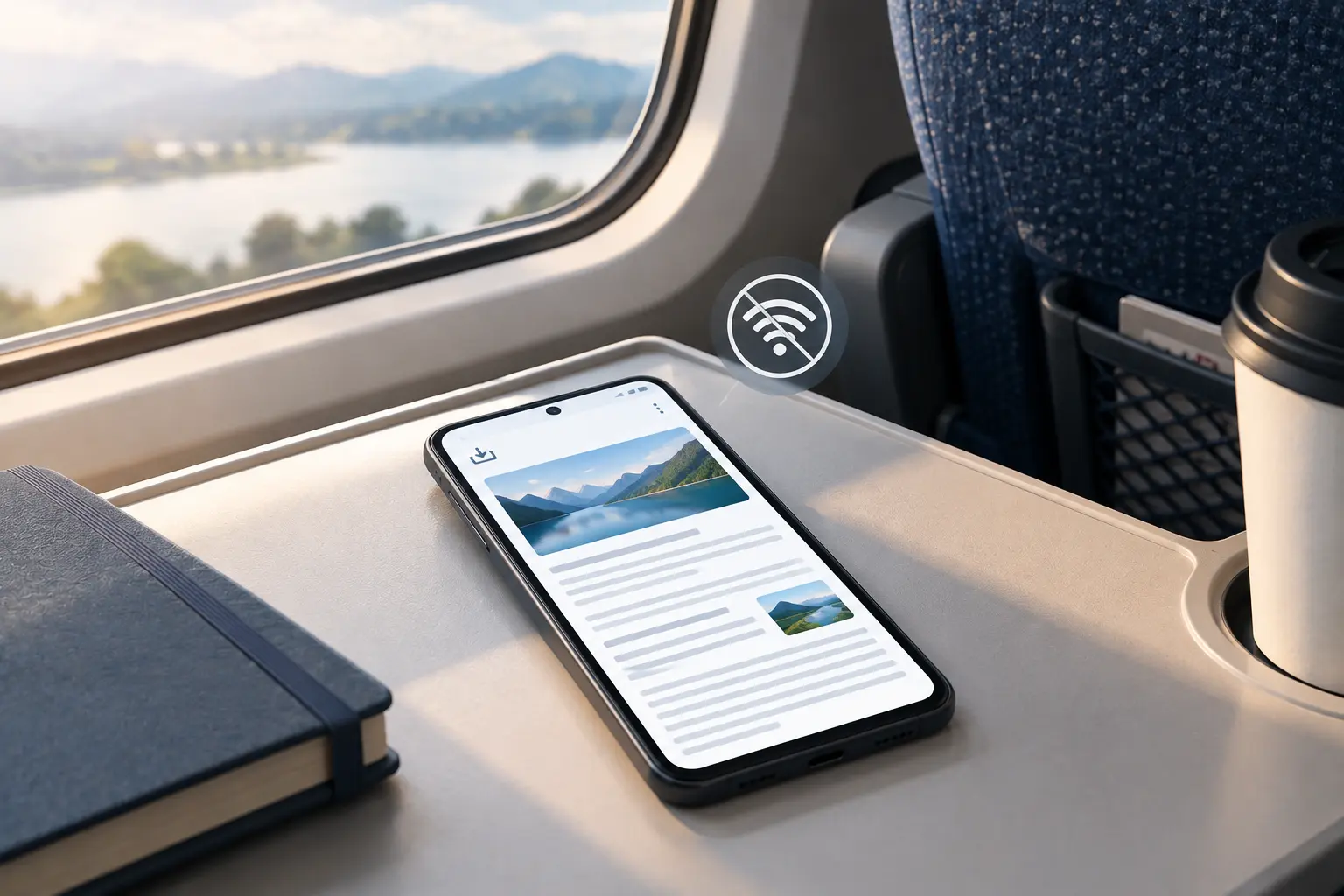
Quick answer: To read news offline, use an app that lets you download briefings or articles in advance while you have a connection, then open them later without one. Most apps that support this need a one-time setup—enabling offline access and choosing what to download—after which it happens automatically whenever you're on WiFi.
A subway commute, a flight, or just a stretch of road with no signal shouldn't mean losing access to the news you'd normally read. The gap isn't a lack of good apps—most major news tools support some form of offline access—it's that the feature is usually off by default and easy to miss until you're already disconnected and frustrated.
This guide covers which kinds of apps support offline reading, how to set it up, how to manage the storage it uses, and a few habits that make it genuinely reliable for commuters and travelers rather than something that only works when you remember to prepare in advance.
Table of Contents
- Which Apps Support Offline News Reading?
- How to Read News Offline: Step-by-Step
- Managing Storage for Downloaded Content
- Setting Up Auto-Downloads
- Tips for Commuters and Travelers
- Checklist: An Offline-Ready News Routine
Which Apps Support Offline News Reading?
Offline support generally falls into one of a few categories:
- Briefing-style apps that let you download a short, pre-summarized briefing for offline reading—usually a small file, quick to download even on a weak connection.
- Full-article news apps that let you save or download specific articles for later, similar to a reading-list feature.
- RSS readers, many of which cache recently fetched articles automatically, so they're readable offline even without an explicit "download" step.
- Podcast and audio news apps, which typically support downloading episodes for offline listening by default.
Not every app in each category supports offline access equally well—some only cache a limited number of recent items, while others let you control exactly what gets downloaded and how long it's kept. It's worth checking an app's settings directly rather than assuming offline support exists just because the app works most of the time without a strong connection.
How to Read News Offline: Step-by-Step
The general setup is similar across most apps that support it:
- Open the app's settings and look for an "offline" or "downloads" option. This is usually under a general or data-usage settings menu.
- Enable offline access or downloads, if it isn't on by default.
- Choose what to download—a daily briefing, specific categories, or individual saved articles, depending on what the app offers.
- Connect to WiFi and let the download complete before you lose your connection. Most apps download in the background once enabled.
- Open the app in airplane mode or with data off to confirm the downloaded content is actually accessible—this catches setup mistakes before you're actually relying on it.
Doing this once, before you need it, is far more reliable than trying to set it up in the moment you realize you're about to lose a connection.
Managing Storage for Downloaded Content
Downloaded news content is usually small, but it can add up if you keep a long history or download full articles with images regularly. A few practical habits help:
- Set a retention limit if the app offers one, so older downloads get cleared automatically instead of accumulating indefinitely.
- Prefer text-based or briefing-style downloads over media-heavy full articles if storage is a concern, since text and short summaries take up far less space than image- or video-heavy pages.
- Periodically check the app's storage usage in its settings, especially if you've noticed your device running low on space.
- Clear downloads manually after a trip if the app doesn't do this automatically, rather than letting them sit unused indefinitely.
Setting Up Auto-Downloads
Manually downloading content before every commute or trip works, but it's easy to forget. Auto-download settings remove that step:
- Schedule downloads for a specific time, such as early morning, so your briefing or saved articles are ready before you leave.
- Restrict auto-downloads to WiFi only, if the app supports it, to avoid using mobile data without realizing it.
- Combine auto-download with a notification, if available, so you know the content is ready rather than finding out only once you're already offline.
Once this is set up, offline reading stops being something you have to remember and becomes part of how the app already works in the background.
Tips for Commuters and Travelers
A few habits make offline reading noticeably more reliable in practice:
- Download the night before or first thing in the morning, rather than right as you're about to lose signal—connections often get weaker right before a tunnel, departure, or dead zone, which is the worst time to start a download.
- Check your download succeeded while you still have signal. A failed or partial download is only obvious once you're already offline and it's too late to fix.
- Keep a backup source, like a downloaded podcast episode or a saved article from a different app, in case your primary offline source didn't update in time.
- Account for time zone changes while traveling, since a briefing downloaded before a flight may reflect an earlier point in the day than when you actually read it.
Checklist: An Offline-Ready News Routine
Use this to confirm your setup will actually work the next time you lose connection:
- [ ] Offline access or downloads enabled in your news app's settings
- [ ] At least one successful offline test (airplane mode, content still readable)
- [ ] Auto-download scheduled for a time before your typical commute or departure
- [ ] Storage or retention limits set, if your app supports them
- [ ] A backup offline source in case your primary one doesn't update in time
If every box is checked, losing a connection stops being a reason to go without news—it just means reading what's already there. Pairing this with a regular, scheduled news routine makes offline reading one less thing to think about, since the download happens automatically before you'd normally check in anyway.
GeoBarta's briefing supports downloading for offline reading, so a short daily summary can be ready before you lose a connection, without needing to save individual articles one at a time.
Frequently Asked Questions
Can I read news without an internet connection?
Yes, as long as you've downloaded the content in advance while connected. Most briefing apps, many full-article news apps, and most RSS readers support some form of offline access once it's enabled in settings.
How do I download news articles to read later?
Check your news app's settings for an "offline" or "downloads" option, enable it, choose what to download, and let it finish over WiFi before you lose your connection. Testing it once in airplane mode confirms it's actually working.
Does offline news reading use a lot of storage?
Usually not much, especially for text-based briefings or summaries. Full articles with images use more space, so setting a retention limit or preferring text-based downloads helps keep storage use manageable.
How can I make sure my news is ready before a flight or commute?
Set up auto-downloads scheduled for a time before you typically leave, restricted to WiFi if possible, so the content is ready without you needing to remember to download it manually each time.
What should I do if my offline download fails?
Check it while you still have a signal, not after you've lost it—a failed or partial download is only obvious in time to fix if you test it in advance. Keeping a backup source, like a downloaded podcast or a saved article elsewhere, helps if your primary source didn't update.
Legal Disclaimer
This article is for general informational purposes only and does not constitute legal, medical, financial, or professional advice. Product names, features, and availability mentioned are current as of the publish date and may change—check GeoBarta's official pages for the latest details. Any statistics without a cited source are illustrative, not verified figures.
Reading news offline mostly comes down to a bit of setup done in advance—enabling downloads, scheduling them before you need them, and testing once to confirm it actually works. After that, a lost connection just means reading what's already there.
Try GeoBarta Free
Get your AI-powered daily news summary in 60 seconds. No signup required.
Start Your Free BriefingContinue Reading
Guides · 12 min read
How to Stay Informed While Traveling: The Complete Guide for 2026
Traveling doesn't mean losing touch with the world. Learn how to stay informed while abroad, handle time zones, access news offline, and balance local and home country news. Essential tips for business travelers, digital nomads, and vacationers.
Guides · 8 min read
Newsroom Platform Comparison: What Teams Should Look For
Choosing a newsroom platform means comparing collaboration, publishing speed, and editorial workflow. Here's what to evaluate.
Guides · 7 min read
How to Read News Without Ads in 2026
From RSS readers to ad-free news apps, here are practical ways to keep ads out of your daily news routine.